Ticket Stampede
Eight tickets, one agent at a time, and you are the bottleneck.
Game over Eight tickets in. One shipped.
Unlocks Factory: a workflow that runs every ticket
WORLD 1-1
TCC Terminal Command Center
TCC Factory runs your tickets down a workflow you draw, each in its own git worktree with its own Claude Code or Copilot CLI agent. When one needs you, its pane glows and your watch can answer it.
Opens your own mail app with the link filled in. No sign-up; nothing is sent to us. No mail app?
Windows 10 and 11, x64. Version 0.3.1. No account, no API keys.

Player select 4 agents
WORLD 1-2
Factory is a new way to build software with AI. Draw a workflow, drop tickets in and press Start. Every ticket gets its own git worktree and its own Claude Code or Copilot CLI session, and moves down the line by itself. You stop nursing one agent at a time and start delivering tickets.
.tkt text files in a folder.Tickets, Decision, Categorise, Action, Wait, Delay and End nodes on a canvas. Wire an output to the next node; an unwired output finishes the ticket.
Each ticket gets a factory/<ticket-id> branch in its own worktree (on by default), and keeps the same AI session for the whole line. Action nodes type the prompt for you and move on when the turn ends.
Decision and categorise nodes ask a decision model where each ticket goes next, from the ticket and its files or the tail of its console. laya runs on your PC; jev is hosted.
"N at a time" caps how many tickets a node works on. A ticket whose agent waits on you shows Needs your input, and Open session takes you straight to its pane.
WORLD 1-3
PICK A GAME
Each one is a familiar moment from running coding agents. Watch it go wrong, then watch TCC replay it.
TCC ARCADE
Ticket Stampede
Game over
Eight tickets in. One shipped.
STORY TIME. NOT A BENCHMARK.
TICKETS ARE CATTLE, NOT PETS
NOW PLAYING Ticket Stampede
Draw a workflow once. Every ticket gets its own worktree and agent, and moves on by itself.
Game over times are story time, not a benchmark. Session names in the games are made up.
CARTRIDGE SHELF 4 GAMES
Eight tickets, one agent at a time, and you are the bottleneck.
Game over Eight tickets in. One shipped.
Unlocks Factory: a workflow that runs every ticket
You stepped away. Your agent finished with a question and stopped.
Game over You came back. It stopped 40 min ago.
Unlocks Reply from your watch or phone
You left home. Your agent asked a question nobody could see.
Game over You left the Wi-Fi. It waited all day.
Unlocks Cloud connections from your phone or another TCC desktop, end-to-end encrypted
Can't find yesterday's agent chat? Start again from scratch.
Game over You explained the whole bug again.
Unlocks Every session in one panel. Click to resume
WORLD 1-4
6 items to find
Every screen on this level is a real screenshot of TCC 0.1.0. ScrollSwipe to collect all six.
Split any pane to any depth, then flip between the grid and one pane in focus.
KeysCtrlAlt→split rightCtrlShiftFgrid / focus

A letter lands on every pane. Press it and you are there. No mouse, no hunting.
KeysCtrlShiftJthen a letter

Every Claude Code and Copilot CLI session on this PC, grouped by repo, each with its live state. Click a row to resume it in a new pane.
KeysCtrlShiftCAI Sessions

Comment on any line of the diff, then send every note to Claude in one go.
OpenCtrlShiftPthen Diff Review

Create, open and review git worktrees from one panel, so every agent gets its own branch and nobody trips over anybody.
OpenWorktreesin the status bar

The palette lists every command with its shortcut. Then pick a skin: 12 themes, 8 dark and 4 light.
KeysCtrlShiftPpaletteCtrlShift?all shortcuts

Six power-ups in the box. TCC is not released yet, so email yourself the link and check back.Six power-ups in the box. Want them on your own PC?
Your own mail app opens with the link filled in. No sign-up, and nothing is sent to us.
WORLD 1-5
Your Android phone and Wear OS watch connect straight to your PC on your own network. When Claude needs you, answer from your wrist.
Out of the house? When you add a host, pick Local or Cloud. Cloud reaches the same PC from anywhere, end-to-end encrypted. And on another TCC desktop, Connect to host… opens your PC’s tabs.
TCC is free. Cloud connect is an optional paid add-on with a 3-month free trial. Cloud account
Android 8.0 or later. Wear OS (API 30) or later. Not on app stores yet.
Animation
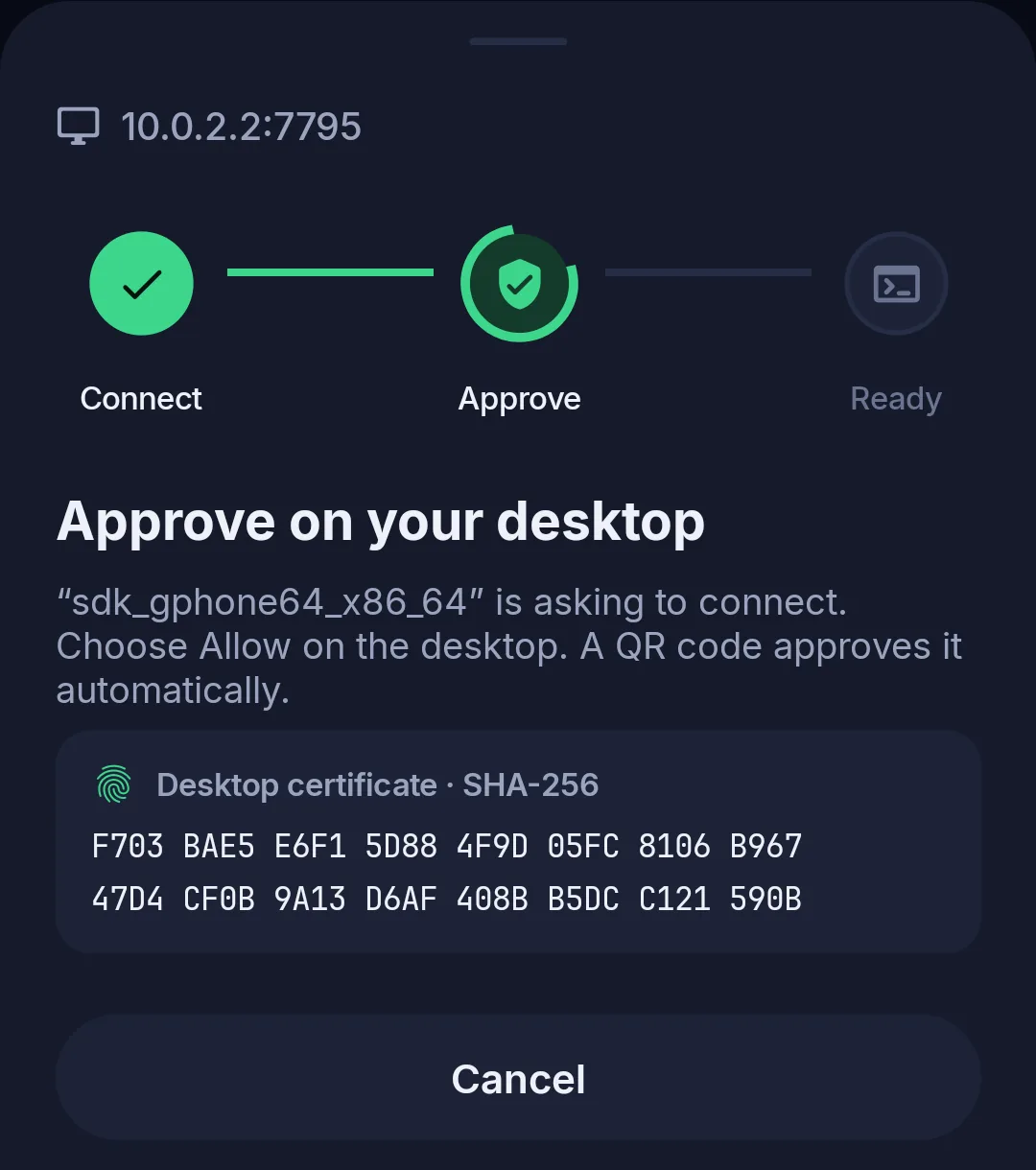
Phone and watch each connect to your PC on their own, never through each other.
Animation
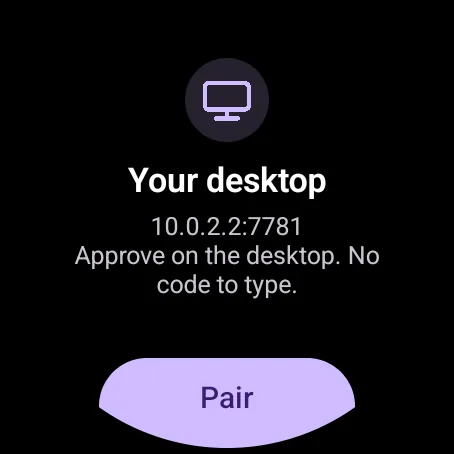
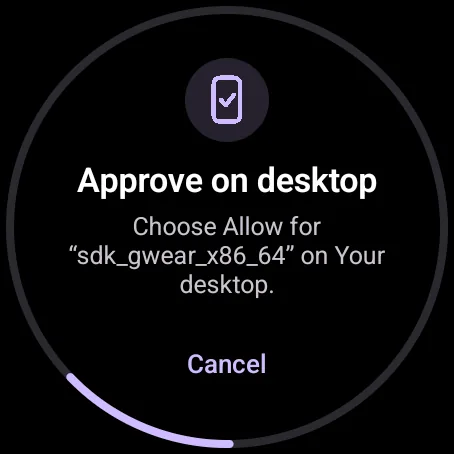
Replies type text plus Enter into the session. They are not a permission button.
The big screens are real screenshots from the Android emulator. The small pixel devices are drawn animations, not recordings.
WORLD 1-6
PLAYER 1: TCC 0.1.0
Measured, not promised: five records and a bonus round, each with the conditions it was set under.
Measured on one Windows 11 PC (Ryzen AI 9 HX 370), 2026-10-08.
The PC was in normal use, not idle. Cold start means the app was not running, with a warm OS file cache. Some launches take longer: 27 of 30 were under 500 ms.
Your own mail app opens with the link filled in. No sign-up, and nothing is sent to us.
World 1-7 · Save point
Game saved
Paired to your PC. Cloud is optional.
At home, phone and watch talk straight to your PC over an encrypted connection on your own network. Away from it, Cloud connect goes through a relay that can’t read your sessions: it only forwards ciphertext.

Save file 1 Account: only for Cloud Relay: ciphertext only Network: yours
Item 01
Phone and watch connect over WebSocket with TLS 1.2 or 1.3.
Item 02
At pairing, the phone pins your PC’s certificate. A different one is refused.
Item 03
6 digits. Expires in 5 minutes. Burned after 5 wrong guesses.
Item 04
A watch, and every first cloud connection, asks on your desktop first: Allow or Deny. Cloud shows the key fingerprint.
Item 05
Settings › Remote devices › Revoke disconnects a device at once.
Item 06
The relay forwards only ciphertext. Choose Standard, Strict or Paranoid. Remote resize is off by default.
What the relay keeps: your account email, a password hash, your plan and trial dates, your devices’ names and public keys, which devices you approved and when each was last seen, hashed sign-in and reset tokens, a hashed machine identifier (used only to allow one Cloud trial per machine) and how much cloud data you used each month. Never what you type or what your terminals show: it only ever carries ciphertext.
WORLD 1-8
Send tickets down a Factory line, run every agent in one Windows window, and answer them from your PC, phone or watch.
Keep the linkGet early accessGet TCC
There is nothing to sign up for yet, so take the link with you.
The latest release for Windows 10 and 11, x64, as a zip. It installs for your user, without admin rights.
Or bookmark it: Ctrl+D on a PC, Share on a phone.
TCC has no public download or waitlist yet. The email opens in your own mail app with the link filled in; nothing is sent to us.
System requirements1P
29.9 MiB. Measured on one Windows 11 PC (Ryzen AI 9 HX 370), 2026-10-08.